Category: Cookbook Design

  • A Family Reunion Cookbook Brings Families Together

    A Family Reunion Cookbook Brings Families Together

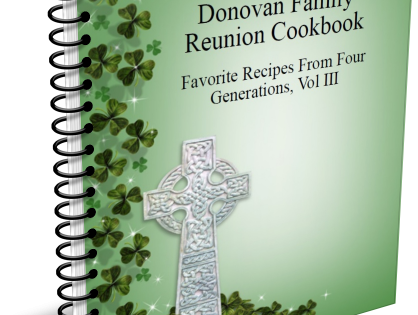
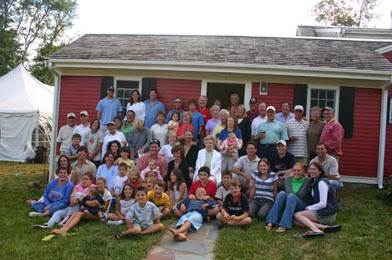
    The Donovan Family Reunion

    Few gatherings are as meaningful and memorable as family reunions. As families grow and people go their own ways, family reunions serve to bring us back together. They’re a chance to recombine, share experiences and renew connections.

    One great idea to make your family reunion truly memorable is to create a family cookbook. Everyone knows the best thing about a family reunion is the food! Everyone brings their favorite dishes and shares stories and food and fun.

    There are two different schools of thought on the best way to create a family reunion cookbook. You be the judge on what is best for your family.

    Reunion Specific Cookbook

    Since reunions take a fair amount of time to plan and often center around a theme, choosing a theme centering on food can be a natural choice. Family members are asked to contribute their favorite recipes to a family cookbook that can be distributed at the event. You set a date and ask everyone to contribute the recipes for the food they will be bringing to the event. The cost of printing the cookbooks is included in the cost of the event and everyone receives one the day of the event. This is also a great way to build buzz for your event!

    Reunion Showcase Cookbook

    The other way families create family cookbooks at family reunions is to use the event to show a sample of what a family cookbook looks like and collect email addresses used to invite contributors.  People will see your excitement and want to participate as well. Find your favorite dishes at the event and ask whoever made them to contribute the recipe to the cookbook. They will be flattered that you asked and look forward to participating.  Set a deadline that will allow you to have your family cookbooks complete so people can give them as gifts for the holidays.

    Some things to consider when creating your reunion cookbook

    During the planning process, many families are looking for a way to communicate effectively via email. Adding lots of people to the sender line of an email list can result in people being left off and not being able to contact specific people or subsets of the list. FamilyCookbookProject.com can help make this easier. Use our Reminder Email Tool and you make it easy to contact some or all of your family members.

    Don’t wait until the last minute. When planning a family reunion cookbook, the event is a fixed date and comes and goes whether your cookbook is ready or not. Now is the time to start working on a family reunion cookbook if your event is in the summer.

    Remember to invite everyone to participate, not only the great cooks! This cookbook is for all the family members so it best to invite everyone to contribute – even if it is only a recipe or two.

    Finally remember family members no longer with us by including their recipes as well. Family cookbooks help to tell the story of our families. Contributors can be not only the present, but from the past as well.


    Bill Rice is Founder and Co-Publisher of the Great Family Cookbook Project, a website that helps families and individuals collect, preserve and share food memories by creating their own printed personal cookbooks. He is the author of The Wellfleet Oyster Cookbook and the Cape Cod Cocktail Cookbook (Available on Amazon), both created using FamilyCookbookProject.com. He is also editor of the Donovan Family Cookbook, now it’s third printing and is an avid genealogist tracing his family back to the 1600’s.

    Follow Family Cookbook Project on Facebook, Instagram, Twitter and Pinterest!

  • How to Make Sure Your iPhone Photos Work On Family Cookbook Project

    How to Make Sure Your iPhone Photos Work On Family Cookbook Project

    If you have an iPhone, Apple has changed the format the camera uses to save photos on the iPhone. While this has many benefits, like taking less space for storage, it does have drawbacks, like not being compatible with non-Apple systems – like FamilyCookbookProject.com.

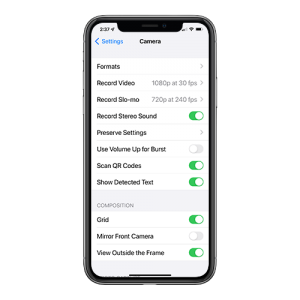
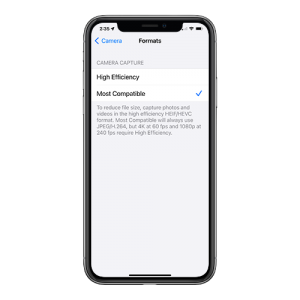
    To switch from HEIC to JPG, you must configure the camera capture format using the iPhone’s Settings app. There are two camera capture settings that you can opt for — High Efficiency and Most Compatible. The former will shoot photos in HEIC, while the latter will shoot photos in JPG.

    Here is how to change the settings in your iPhone to save image as Jpegs.

    Step 1: Open the Settings app on your iPhone. Scroll down and tap on Camera. Then, tap Formats from the list of Camera settings.


    Step 2: Under Camera Capture, tap Most Compatible.

    That’s it. Your iPhone will now shoot photos in the JPG format directly.

    If you have images already saved in HEIC, there are several free websites that will convert the images for you.


  • How To Create A Multi-Part Recipe

    How To Create A Multi-Part Recipe

    Have you ever had a cake recipe that really needed a specific frosting? Or a meat recipe that required a special sauce? Wouldn’t it be great if a recipe could have sub recipes attached to keep them together?

    Many of our FamilyCookbookProject.com editors have asked for the ability to have multiple sections or steps in recipes. We like to listen and have added it! Now you can have up to 5 “sub” recipes or steps within a recipe, each with its own set of ingredients and directions. Example? You have Carrot Cake and you want a section for the “Cake” with its ingredients and directions, then “Cream Cheese Frosting” with another set of ingredients and directions.

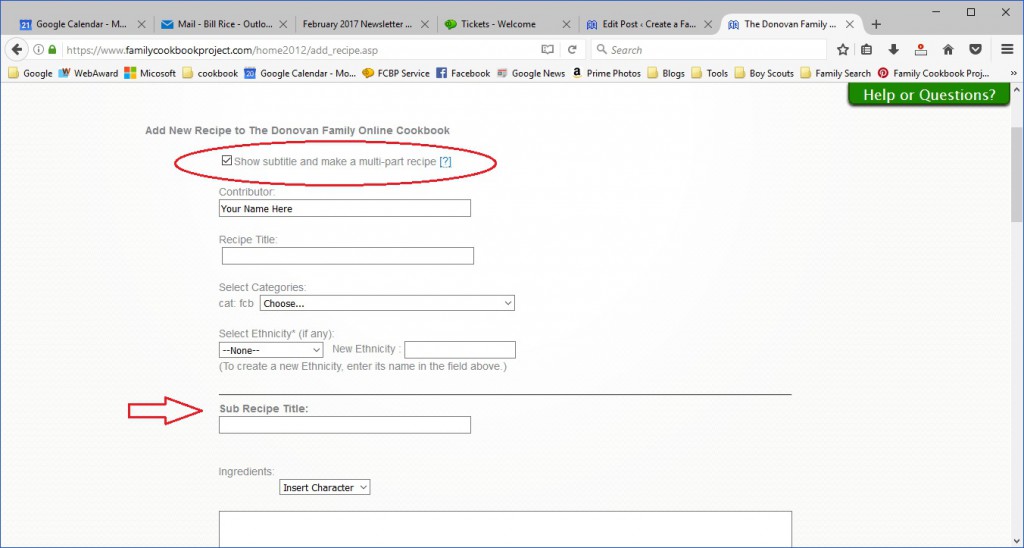
    To use this feature, simply go to Add Recipe or Edit an existing recipe. First check the box for “Show subtitle and make a multi-part recipe” right under the contributor field. This will add a field for the sub-recipe title.

    Using our example above, here is where you would add your carrot cake ingredients and directions.

    Next, click on the green button to “Add new sub recipe”. This will add fields for a second set of sub recipe titles, ingredients and directions for your Cream Cheese Frosting.

    You can add up to five sub recipes for your overall recipe.

    When you are done, make sure to click on the green button on the bottom of the page to save your recipe before moving on to your next recipe.


    Bill Rice is Founder and Co-Publisher of the Great Family Cookbook Project, a website that helps families and individuals collect, preserve and share food memories by creating their own printed personal cookbooks. He is the author of The Wellfleet Oyster Cookbook and the Cape Cod Cocktail Cookbook (Available on Amazon), both created using FamilyCookbookProject.com. He is also editor of the Donovan Family Cookbook, now it’s third printing and is an avid genealogist tracing his family back to the 1600’s.

    Follow Family Cookbook Project on Facebook, Instagram, Twitter and Pinterest!
  • How to Take Great Food Photos for Your Recipes

    How to Take Great Food Photos for Your Recipes

    They say a picture is worth a thousand words and with recipes that is especially true.

    It’s wonderful to read a list of ingredients and see the potential in a recipe, but to look at the finished product can make your mouth water!

    Family Cookbook Project highly recommends adding a photo to every recipe you can in your online cookbook. It helps people to see what to expect when they follow your recipe and gives them a standard to meet when comparing their finished dish to the original.

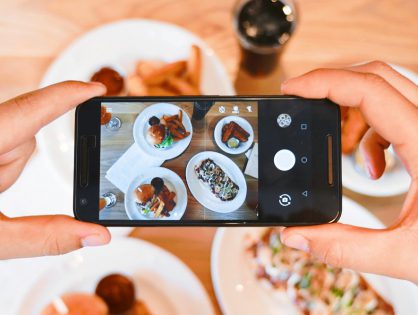
    With the advent of digital cameras built into cell phones, you don’t have to be a professional photographer to take good food photos.

    Here are some pointers to help improve your recipe photos:

    Use Natural Light – Make sure that the light is right – shoot the food either next to a bright window or under a pendant light in the restaurant. Don’t use your camera’s flash! Set your dish near a window and turn off any artificial lights that might be on nearby. Try to photograph with the light at your back or to the side of a dish, so that the shadows are to the side or behind it. 

    Hold Still – Taking photos inside, even with ample natural light, often means you have to hold the camera very still to keep it from registering hand shake. If you have a tripod, that’s ideal. If you don’t, you can duplicate the tripod effect by resting your elbows on the table or counter and using them to stabilize the camera. Moving the camera when taking a photo will only lead to blurry unusable photos. 

    Get close to the food! – Don’t stand back three feet and get the food with the stove, the dirty dishes, and all the condiments around it. Move in and get up close and personal, and let the pan…or the plate…or the cutting board fill the frame.  

    Stage the shot – The food isn’t the only thing in the photo. Using plates, silverware and linens in complementary colors can help your dish come alive. Shoot food on a beautiful plate or on a table with texture and character. The more appetizing the ingredients, the better your photo will be. Plates that contain colored vegetables and/or meat, preferably in light-colored sauces, are often the most appealing to the eye in photos. Also Don’t be Afraid of a mess. A few crumbs or a smear of dressing can be beautiful, if you let them. 

    Focus on the food –  If you are using a DSLR, stop down your lens to f/1.8 or f/2.0 that limits your depth of field to one part of the image only, blurring out everything around the subject, simulating a shot taken with a macro lens. If you are using an iPhone, there are apps, such as Camera+ or VSCO Cam, that will create the same effect. Remember, you want the food to be the main focus, not the background. 

    Try different angles –  Get up over the food and shoot straight down on it. When shooting overheads, if appropriate, try filling up the frame with what’s already on the table such as cups, wine glasses, utensils and moving hands. You can also  think in three dimensions. You might not usually serve brownies piled in a vertical column, but stacking any flat food, like pancakes, cookies, or even onion rings, is a great way to show off texture and make the photo more appealing. You can also add dimension to your food photos by showing the dish right after the first bite is taken, or the second and third. These are little details that make a viewer feel like they’ve sat down and are enjoying the meal.

    Get Close to Ugly Foods  – Some foods, no matter how good they taste, just don’t make good photos. But the closer you get to your subject, the more the visual story becomes about texture and color, rather than pure mouth-watering beauty. Avoid foods that are white and gloppy, such as congealed gravy on white pasty mashed potatoes. 

    Size Matters –  Make sure your camera settings are set for a good sized photo. Small photos look blurry when they are enlarged online. A photo viewed online only has to be 72 dpi (dots per inch, the measure for quality), but if you are going to print your photo, you want it to be at least 300 dpi. 600 pixels wide (a measurement for size) is a good target for minimum photo size.

    Using other’s photos – It is important to note that the Internet makes it easy to find photos of recipes already taken. While this might be much easier, the photo still is the property of whoever holds the rights. Don’t always assume that because a photo is on the Internet you can simply use it for your recipe. Make sure you ask permission from the owner before you use it.


    Bill Rice is Founder and Co-Publisher of the Great Family Cookbook Project, a website that helps families and individuals collect, preserve and share food memories by creating their own printed personal cookbooks. He is the author of The Wellfleet Oyster Cookbook and the Cape Cod Cocktail Cookbook (Available on Amazon), both created using FamilyCookbookProject.com. He is also editor of the Donovan Family Cookbook, now it’s third printing and is an avid genealogist tracing his family back to the 1600’s.

    Follow Family Cookbook Project on Facebook, Instagram, Twitter and Pinterest!
  • Family Cookbook Project Introduces New Cover Editing Tool

    Family Cookbook Project Introduces New Cover Editing Tool

    FamilyCookbookProject.com offers a wide array of professionally designed cookbook covers for our editors to choose. Now you also have the ability to alter the cover text and the position of photos added to the cover.
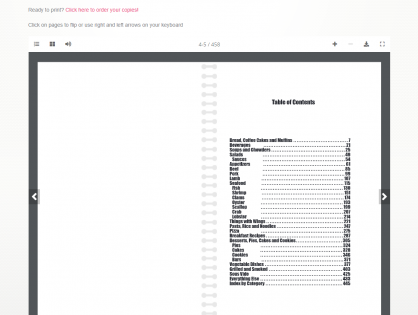
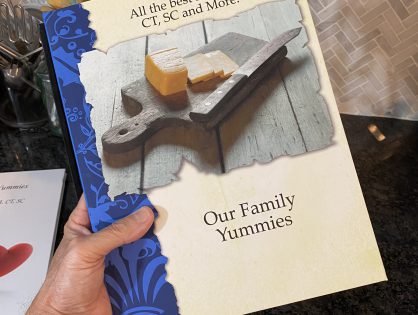
    You have full creative control on your cover text and photo layouts with the new Cover Arranger Tool.  Go to Layout & Design>Select Cover.  You’ll see a link/button for “Custom Cover Arranger Tool.”

    You will see your cover as it will look in your printed book, sized according to your settings on a layout screen.  You can edit your title and subtitle text, fonts and location.

    On the right side of the screen, select the cover item to “edit” in the drop down box.  You can move them around and resize them any way you’d like.  If you want your photos to retain their correct aspect ratio, check the little box on each photo’s lower left.  They can also be layered one on top of another.  You’ll see that when moving a photo, it automatically comes to the top/front of all others.  When done, click the “Save” button.

    You can also manage your cover photo settings on the right.  In the select box, choose “Picture”.  Click [Edit Photo] to set things like border style and color-B/W.  Those will be added normally in your printed book on the photos.

    If you wish to reset your cover text and photos to the default, check the boxes next to the Save button and click Save.

    Here is a video that shows how to use this new tool.

  • Why Your Cookbook Needs Blank Pages

    Why Your Cookbook Needs Blank Pages

    One of the questions we at FamilyCookbookProject.com get a lot is “Any way to remove blank pages that I will be charged for in printing?”

    While removing a few extra pages might save you a few pennies when printing, almost all blank pages are needed. In the publishing world, certain pages need to start on the right side of a two page layout.  The Table of Contents and Category Dividers are two examples of these types of pages that always are placed on the right side of a two page layout.

    If you run your preview and look at the 3D Preview, you’ll see that almost all blank pages are the end of sections to leave the new sections to start fresh.

    In terms of the recipes categories, if the last page of a recipe category is blank, that page was placed there so as to have the next category starts on the right page side. However, if you add additional recipes to that first section, the blank page may come and go depending on the number of recipes in the section.

    You have an option of adding a photo using the Cookbook Picture Manager or a custom page using the Custom Pages Tool to the “end” of any recipe section. That can help fill the blank page. However, if you have not finished the section and add/edit recipes, you may end up with a blank page after your photo/custom page, so wait until all of your recipes are added before considering adding any custom pages.

    Another way to eliminate blank pages on the back of recipes dividers is to include our “Helpful Tip” content on the back of the dividers or to add family photos and set the location in the Photo Manager Tool to the back of the divider.

    You also have the option to start the recipes on the back of the divider. This is done in the Layout and Design Center of your editors homepage. Select “Select Dividers” from the Frist Steps section and check the box for “Start recipes on divider back.” This is also where you can turn on and off “Helpful Tip”.


    Bill Rice is Co-Founder and Publisher of the Great Family Cookbook Project, a website that helps families and individuals collect, preserve and share food memories by creating their own printed personal cookbooks. He is the author of The Wellfleet Oyster Cookbook (Available on Amazon) and the Cape Cod Cocktail Cookbook, both created using FamilyCookbookProject.com. He is also editor of the Donovan Family Cookbook, now it’s third printing.

    Follow Family Cookbook Project on Facebook, Instagram and Pinterest!

  • Why Your Cookbook Needs Blank Pages

    Why Your Cookbook Needs Blank Pages

    One of the questions we at FamilyCookbookProject.com get a lot is “Any way to remove blank pages that I will be charged for in printing?”

    While removing a few extra pages might save you a few pennies when printing, almost all blank pages are needed. In the publishing world, certain pages need to start on the right side of a two page layout.  The Table of Contents and Category Dividers are two examples of these types of pages that always are placed on the right side of a two page layout.

    If you run your preview and look at the 3D Preview, you’ll see that almost all blank pages are the end of sections to leave the new sections to start fresh.

    In terms of the recipes categories, if the last page of a recipe category is blank, that page was placed there so as to have the next category starts on the right page side. However, if you add additional recipes to that first section, the blank page may come and go depending on the number of recipes in the section.

    You have an option of adding a photo using the Cookbook Picture Manager or a custom page using the Custom Pages Tool to the “end” of any recipe section. That can help fill the blank page. However, if you have not finished the section and add/edit recipes, you may end up with a blank page after your photo/custom page, so wait until all of your recipes are added before considering adding any custom pages.

    Another way to eliminate blank pages on the back of recipes dividers is to include our “Helpful Tip” content on the back of the dividers or to add family photos and set the location in the Photo Manager Tool to the back of the divider.

    You also have the option to start the recipes on the back of the divider. This is done in the Layout and Design Center of your editors homepage. Select “Select Dividers” from the Frist Steps section and check the box for “Start recipes on divider back.” This is also where you can turn on and off “Helpful Tip”.


  • Family Cookbook Project Now Offers Hard Cover Option

    Family Cookbook Project Now Offers Hard Cover Option

    They say you can’t judge a book by its cover, however most people do. Family Cookbook Project announces a new, upgraded cookbook cover.  You can now select a hardcover binding that includes the name of the cookbook on the spine.

    A hardcover option has been a popular request from many of our editors and you can now select that option for your cookbook under Layout & Design, Binder & Lamination Options.

    A hardcover can be applied to either an 8 1/2 x 11 cookbook or our standard 8 ½ x 5 ½ cookbook. All of our existing covers are available for hardcovers as well as custom covers that the editors design.

    The addition of a hardcover will impact the price of your cookbook by about six dollars per cookbook.  Shipping may be a bit higher with the added weight, too.

    The hardcover binding has a page limit of 250 pages. This is usually more than enough for most cookbooks to print all of your best recipes.  Let us know what you think!


  • How To Create A Multi-Part Recipe

    How To Create A Multi-Part Recipe

    Have you ever had a cake recipe that really needed a specific frosting? Or a meat recipe that required a special sauce? Wouldn’t it be great if a a recipe could have sub recipes attached to keep them together?

    Many of our editors have asked for the ability to have multiple sections or steps in recipes. We like to listen and have added it! Now you can have up to 5 “sub” recipes or steps within a recipe, each with its own set of ingredients and directions. Example? You have Carrot Cake and you want a section for the “Cake” with its ingredients and directions, then “Cream Cheese Frosting” with another set of ingredients and directions.

    To use this feature, simply go to Add Recipe or Edit an existing recipe. First check the box for “Show subtitle and make a multi-part recipe” right under the contributor field. This will add a field for sub-recipe title.

    Using our example above, here is where you would add your carrot cake ingredients and directions.

    Next, click on the green button to “Add new sub recipe”. This will add fields for a second set of sub recipe title, ingredients and directions for your Cream Cheese Frosting.

    You can add up to five sub recipes for your overall recipe.

    When you are done, make sure to click on the green button on the bottom of the page to save your recipe before moving on to your next recipe.


    Bill Rice is founder and Co-Publisher of the Great Family Cookbook Project, a website that helps families and individuals collect and share food memories through customized printed cookbooks filled with treasured recipes. Follow us on Facebook and Pinterest!

  • Co-Editors Now Available on Family Cookbook Project

    Co-Editors Now Available on Family Cookbook Project

    Face it, sometimes we all need a little help.

    As a cookbook editor, you always had the ability to invite other family members to contribute recipes, so you did not need to personally enter all those recipes into the system (this is also a great family project). However, contributors could only edit their own recipes and nothing else.

    Until now.

    In the editor’s Communication Center, any contributor can now be upgraded to a co-admin for the cookbook. This gives them the ability to edit all of the recipes within the cookbook, not just their own. This can be a huge time saver when getting a cookbook ready to print. Having co-editors make the first edits to a recipe will allow the editor to focus on the design elements of the cookbook and the overall project.

    It is also important to note that the primary editor still has ultimate responsibility for the design and content of the cookbook so while family members can help, ultimately it is the editor that needs to sign-off that the cookbook is correct and ready for printing.

    One thing to remember, “Too many cooks spoil the soup.”  So be very careful when promoting someone to co-editor.  They can adjust settings and recipes just like the main Editor.  So keep communicating!  And once the editing work is done, you can easily change a co-editor back to normal contributor.


    Bill Rice is founder and Co-Publisher of the Great Family Cookbook Project, a website that helps families and individuals collect and share food memories through customized printed cookbooks filled with treasured recipes. Follow us on Facebook and Pinterest!