Category: Editor Tips

  • Creative Ways to Organize Your Personal Cookbook Recipes

    When it comes to creating your personal or family cookbook, organizing your recipes is key. Having a well-organized cookbook makes it easy to find the right recipe when you’re looking for inspiration, but aren’t sure exactly what to cook. Most cookbooks are organized in the traditional way: by how dishes would appear in a meal, starting with appetizers, soups, and salads, followed by main courses, side dishes, and desserts. While this is a useful approach, there are many other creative ways to organize your recipes that can make your cookbook even more functional and enjoyable to use.

    Using FamilyCookbookProject.com, you have the flexibility to create custom categories for your personal or family cookbook. You can even move recipes between categories using their recipe transfer tool, making it simple to adjust your organization as your collection grows. Here are some interesting ways to organize your recipes that will make browsing your cookbook a breeze.

    Organize by Time of Year or Season

    Many people enjoy cooking based on what’s in season or what fits the mood of a particular time of year. For example, hearty stews and soups are perfect for winter, while fresh salads and light grilling recipes are ideal for summer. Organizing your cookbook by season can make it easier to find recipes that align with the ingredients available at that time and create meals that match the season’s vibe.

    Some seasonal categories might include:

    • Winter Comforts : Hearty soups, casseroles, and warm beverages.
    • Spring Freshness : Light salads, spring vegetables, and fresh herbs.
    • Summer Grilling : Barbecue recipes, fresh seafood, and chilled desserts.
    • Autumn Harvest : Squash, pumpkin dishes, and fall baking favorites.

    Organize by Occasion

    Whether you’re hosting a casual weeknight dinner or a festive holiday party, having a cookbook organized by occasion can make planning a meal much simpler. You can create categories based on specific events, holidays, or the formality of the occasion.

    Consider categories such as:

    • Weeknight Dinners : Easy, quick recipes for busy nights.
    • Holiday Feasts : Recipes perfect for Thanksgiving, Christmas, Easter, or other special holidays.
    • Dinner Parties : Impressive, more formal dishes for entertaining guests.
    • Picnics and Barbecues : Outdoor-friendly recipes like sandwiches, salads, and grilled favorites.

    This way, when you’re preparing for a specific occasion, you can easily browse through the most appropriate recipes without searching through unrelated dishes.


     Organize by the Number of People Eating

    Cooking for two people is much different than cooking for a family of six or a big holiday gathering. Organizing your cookbook by the number of people being served is a practical way to ensure you have the right recipes for any situation.

    You might create categories like:

    • Meals for Two : Perfect for intimate dinners or smaller households.
    • Family-Style Dishes : Larger portions for families or groups of four to six people.
    • Potluck or Party Recipes : Recipes that can be made in large quantities to feed a crowd.

    This organization method allows you to quickly find the recipes that will make meal planning easier based on the number of people you’re feeding.


     Organize by Dietary Needs

    Today, many people follow specific diets, whether for health reasons, personal preference, or food allergies. Organizing your cookbook by dietary needs can be incredibly useful, especially if you or your family members have special dietary restrictions.

    Some useful categories might include:

    • Gluten-Free : Recipes that don’t include wheat or gluten-containing ingredients.
    • Vegetarian : Plant-based meals that omit meat.
    • Vegan : Dishes that are free from all animal products.
    • Low-Carb/Keto : Recipes that fit a low-carb or ketogenic diet.
    • Dairy-Free : Perfect for people with lactose intolerance or dairy allergies.

    Organizing recipes by dietary needs makes it easy to accommodate different eaters in your household or plan meals for guests with specific restrictions.


     Organize by Cooking Method

    Another creative way to organize your cookbook is by how the food is prepared. This makes it convenient to find recipes that match the equipment or cooking methods you want to use on a particular day.

    Consider categories like:

    • Slow Cooker/Instant Pot : Hands-off recipes for busy days.
    • Grilling and Barbecue : Recipes for outdoor cooking.
    • Oven Baked : From roasted meats to baked desserts.
    • One-Pot Meals : Recipes that minimize cleanup by using only one dish.
    • No-Bake Desserts : Quick, easy, and refreshing treats.

    This type of organization is helpful when you’re in the mood for a specific cooking method or looking to make meal prep as easy as possible.


     Organize by Ethnic or International Cuisine

    If your recipe collection includes a variety of global dishes, you may want to organize your cookbook by cuisine type. This is especially helpful if you enjoy exploring different flavors from around the world and want to immerse yourself in a particular cuisine when cooking.

    Create categories such as:

    • Italian Favorites : Pasta, pizza, risotto, and more.
    • Mexican Flavors : Tacos, enchiladas, and salsas.
    • Asian Cuisine : Chinese stir-fries, Japanese sushi, Thai curries, and more.
    • Mediterranean Meals : Greek salads, hummus, and Middle Eastern kebabs.

    With this organization method, you can easily find the right recipe when you’re in the mood for a specific type of food.


     Organize by Main Ingredient

    If you often find yourself looking for recipes based on a particular ingredient you have on hand, organizing your cookbook by main ingredient can save time. This is especially useful when you want to use up ingredients before they go bad or when you’re trying to plan meals around what’s in your pantry or fridge.

    Some ingredient-based categories might include:

    • Chicken Dishes : From roasted to grilled and slow-cooked chicken.
    • Beef Recipes : Steak, burgers, casseroles, and more.
    • Seafood and Fish : Salmon, shrimp, crab, and other seafood recipes.
    • Vegetable-Based Meals : Perfect for vegetarian mains or sides.

    This method helps you easily search for dishes based on what you already have or what you’re craving.


     Organize by Time Required

    Sometimes, the amount of time you have to cook dictates what you can make. Organizing your cookbook based on time can help you choose a recipe that fits your schedule, whether you need something quick or have time to prepare an elaborate meal.

    Consider categories such as:

    •  30-Minute Meals : Quick and easy recipes for busy weeknights.
    • Slow and Steady : Recipes that take longer to prepare but are worth the wait.
    • Make-Ahead Meals : Recipes that can be prepped in advance.

    This way, whether you’re short on time or planning a slow-cooked feast, you can find the perfect recipe.


    How FamilyCookbookProject.com Helps Organize Your Cookbook

    Creating custom categories for your cookbook is simple with FamilyCookbookProject.com. The platform allows you to easily:

    • Create and name custom categories : You can organize your recipes any way you want—whether by meal type, occasion, or cooking method.
    • Use the recipe transfer tool : If you change your mind about how you want to organize your recipes, the recipe transfer tool makes it easy to move recipes from one category to another without hassle.
    • Add new recipes over time : Your cookbook can grow with you. As you discover new recipes, you can add them to the appropriate category online and print a second edition down the road.

    With FamilyCookbookProject.com, you have the flexibility to create a cookbook that reflects your unique cooking style and makes finding the perfect recipe a breeze.

    Organizing your personal cookbook in a way that fits your needs and preferences can make a world of difference in how you use it. Whether you prefer traditional categories like appetizers, mains, and desserts or want to get creative with seasonal, occasion-based, or ingredient-focused categories, there are endless ways to make your cookbook work for you.

    With the tools and customization options available on FamilyCookbookProject.com, you can easily create the perfect cookbook that’s tailored to your cooking style and makes meal planning easier than ever. So go ahead, explore these interesting ways to organize your recipes, and turn your personal cookbook into a truly functional and inspiring kitchen companion!


    Bill Rice is Founder and Co-Publisher of the Family Cookbook Project, a website that helps families and individuals collect, preserve and share food memories by creating their own printed personal cookbooks. He is the author of The Wellfleet Oyster Cookbook and the Cape Cod Cocktail Cookbook (Available on Amazon), both created using FamilyCookbookProject.com. He is also editor of the Donovan Family Cookbook, now it’s third printing and is an avid genealogist tracing his family back to the 1600’s.

    Follow Family Cookbook Project on Facebook, Instagram, Twitter TikTok, YouTube and Pinterest!
  • New Table of Contents Designs for Your Family Cookbook

    New Table of Contents Designs for Your Family Cookbook

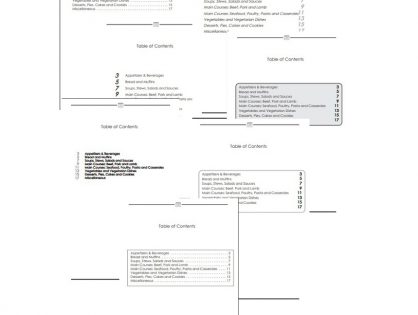
    Family Cookbook Project is excited to announce a major upgrade to the Table of Contents (TOC) options available for your custom cookbook!

    The Table of Contents is more than just a list of sections—it’s the roadmap to your cookbook. A clear and attractive TOC helps readers quickly find the type of recipe they’re looking for, whether it’s appetizers, main dishes, desserts, or a special category you’ve created.

    What’s New

    Until now, there was only one standard Table of Contents style. With this upgrade, you now have eight different designs to choose from. This means you can select a TOC layout that best matches the look and feel of your cookbook.

    How to Access the New Options

    You can find the new TOC designs in your Printed Cookbook Options page when building your book:

    1. Enable the Table of Contents – Start by checking the box to include a TOC in your cookbook.
    2. Choose a Style – Browse through eight unique layout options.
    3. Preview Your TOC – Click the preview button to see what your cookbook’s Table of Contents will look like in each format. (Tip: Be sure to add a few recipes first so your preview is meaningful!)

    More Ways to Customize

    This upgrade is part of our ongoing effort to give you more creative control over your cookbook design. We’ll continue adding features and enhancements so that creating your family cookbook is as fun and joyful as using it.

    Bill Rice is Founder and Co-Publisher of the Family Cookbook Project, a website that helps families and individuals collect, preserve and share food memories by creating their own printed personal cookbooks. He is the author of The Wellfleet Oyster Cookbook and the Cape Cod Cocktail Cookbook (Available on Amazon), both created using FamilyCookbookProject.com. He is also editor of the Donovan Family Cookbook, now it’s third printing and is an avid genealogist tracing his family back to the 1600’s.

    Follow Family Cookbook Project on Facebook, Instagram, Twitter TikTok, YouTube and Pinterest!

  • Pro Tip: Use The Cover Arranger Tool

    Pro Tip: Use The Cover Arranger Tool

    You have full creative control on your cover text and photo layouts with the Cover Arranger Tool.  Go to Layout & Design>Select Cover.  You’ll see a link/button for “Custom Cover Arranger Tool.”

    You will see your cover as it will look in your printed book, sized according to your settings on a layout screen.  You can edit your title and subtitle text, fonts and location.  On the right side of the screen, select the cover item to “edit” in the drop down box.  You can move them around and resize them any way you’d like.  If you want your photos to retain their correct aspect ratio, check the little box on each photo’s lower left.  They can also be layered one on top of another.  You’ll see that when moving a photo, it automatically comes to the top/front of all others.  When done, click the “Save” button.

    You can also manage your cover photo settings on the right.  In the select box, choose “Picture”.  Click [Edit Photo] to set things like border style and color-B/W.  Those will be added normally in your printed book on the photos.

    If you wish to reset your cover text and photos to the default, check the boxes next to the Save button and click Save.

    We have a How-To video for this tool.  Click here!

    Bill Rice is Founder and Co-Publisher of the Family Cookbook Project, the leading online cookbook publisher with a website that helps families and individuals collect, preserve and share food memories by creating their own printed custom cookbooks. He is the author of The Wellfleet Oyster Cookbook and the Cape Cod Cocktail Cookbook (Available on Amazon), both created using FamilyCookbookProject.com. He is also editor of the Donovan Family Cookbook, now it’s third printing and is an avid genealogist tracing his family back to the 1600’s.

    Follow Family Cookbook Project on Facebook, Instagram, Twitter TikTok, YouTube and Pinterest!

  • Pro Tip: Working With Contributors

    Pro Tip: Working With Contributors

    Adding a Contributor

    Adding a contributor is very easy. Simply go to Editor Activities>Communication Center or find the “Invitation Tool” shortcut on your Quick Start. On this page you can enter a person’s name and email and even personalize the email they will receive. That email will automatically create a user account for them and include their login information in the email they receive. This allows them to add and view recipes in your cookbook.

    Watch this video tutorial to see how to work with contributors: https://youtu.be/x-1rS6LN4R0

    Edit a contributor

    To edit a contributor’s info, login to your book.  Go to Communication.  Scroll down to the list of names and click on their name.  This brings you to a page that contains all of their info. Change whatever you like and Save.

    Please note: If you are looking to change a name on the Contributor Page, those names are taken directly from the contributor field on the recipes. You would have to view your recipes by contributor and edit those recipes with the name you wish to change.

    Delete a contributor

    To delete a contributor from your cookbook, login to your book.  Go to Editor Activities>Communication.  Scroll down to the list of names and click on their name.  There is a delete button there.  Any recipes they may have added will be assigned to you (but the Contributor field will still show its original info).

    Bill Rice is Founder and Co-Publisher of the Family Cookbook Project, the leading online cookbook publisher with a website that helps families and individuals collect, preserve and share food memories by creating their own printed custom cookbooks. He is the author of TheWellfleet Oyster Cookbook and theCape Cod Cocktail Cookbook (Available on Amazon), both created using FamilyCookbookProject.com. He is also editor of the Donovan Family Cookbook, now it’s third printing and is an avid genealogist tracing his family back to the 1600’s.

    Follow Family Cookbook Project onFacebook,Instagram,Twitter TikTok, YouTube andPinterest!


  • Here’s How To Convert Apple HEIC to JPG on Mac Using Preview

    Here’s How To Convert Apple HEIC to JPG on Mac Using Preview

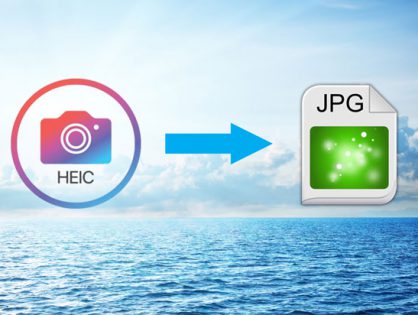
    Family Cookbook Project (and most web sites) accept JPG photos only.  If you are having issues with photos not uploading correctly, check to see if the file format on your Mac is HEIC.  That is Apple’s compressed format.  But it’s easy to convert to JPG.

    Here’s how to convert HEIC to JPG on Mac using Preview:

    1. Open any HEIC image in Preview.
    2. Click File ➙ Export in the menu bar.
    3. Select JPG in the format dropdown and adjust other settings as needed.
    4. Choose Save.

    Here’s how to convert HEIC to JPG on PC using Microsoft Paint:

    1. Open the file in Paint
    2. Go to File>Save As>JPEG picture
    3. Click Save.
  • Pro Tip: How To Add A Browser Bookmark To Your Desktop or Phone Icon

    Pro Tip: How To Add A Browser Bookmark To Your Desktop or Phone Icon

    FamilyCookbookProject.com is a web based cookbook software.  By default, there is no icon on your computer or phone.  You simply add a bookmark in your favorite browser.

    You can then add an icon or shortcut for quick access.  For a phone or tablet, try this site’s suggestions:
    http://www.howtogeek.com/196087/how-to-add-websites-to-the-home-screen-on-any-smartphone-or-tablet/

    Here’s a way to add a browser shortcut on your computer desktop:
    https://www.webopedia.com/quick_ref/how-to-create-a-desktop-shortcut-to-a-website.html

    Bill Rice is Founder and Co-Publisher of the Family Cookbook Project, the leading online cookbook publisher with a website that helps families and individuals collect, preserve and share food memories by creating their own printed custom cookbooks. He is the author of The Wellfleet Oyster Cookbook and the Cape Cod Cocktail Cookbook (Available on Amazon), both created using FamilyCookbookProject.com. He is also editor of the Donovan Family Cookbook, now it’s third printing and is an avid genealogist tracing his family back to the 1600’s.

    Follow Family Cookbook Project on Facebook, Instagram, Twitter TikTok, YouTube and Pinterest!
     

  • FamilyCookbookProject.com Launches “Smart Recipe Converter AI”

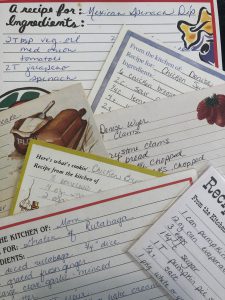
    FamilyCookbookProject.com, the award-winning leader in custom cookbook publishing, has announced the launch of an exciting new free feature: Smart Recipe Converter AI. This powerful tool uses artificial intelligence to extract text from images of recipes—whether handwritten or typed—and convert them into editable text that can be quickly added to a personal or family cookbook.

    Smart Recipe Converter AI is designed to simplify one of the most time-consuming tasks in cookbook creation: typing recipes from old cards, scanned pages, or screenshots. With a single image upload, Family Cookbook editors can now automatically generate transcribed text that’s ready to be pasted into the “Add a Recipe” form, reducing hours of manual effort.

    Here is how to use the new smart recipe upload:

    On the Black navigation bar of your editors account, select “add recipe” and then “upload recipes – AI assist”.

    Click the green select files button and select the recipe you want to import. You can import up to 50 recipes at a time.

    After the recipes upload to the system, click the blue  “start upload” button to start the AI tool.

    When it is complete, you will see your recipes listed and a link to view your newest recipes here”. Clicking, the link will take you to your view recipe by newest and these recipes will appear in your miscellaneous category.

    Now all you have to do is click the edit button, select an actual category for the recipe, proofread the recipe to make sure everything was imported correctly, and click save.

    It’s a simple as that.


    Here are some additional tips on using the new tool.

    If you wish the recipe image to show on the recipe page, you can click the link on the right column “show all pics including AI read”. This will display the image that was uploaded with the recipe text.

    If a recipe card is two-sided, you need to create one image with both sides of the recipe for this tool to work correctly.

  • How to Write A Great Recipe Title

    How to Write A Great Recipe Title

    Your recipe title is the single most important element of your recipe. This is because your title is a headline, and the headline in any type of content has one special and powerful property.

    Think about how you read a cookbook looking for a recipe to try.  You don’t start in the front and read every page like a novel then pick the one you want. No, you scan the pages looking for a photo or recipe title that catches your eye and looks interesting!

    Of all the elements in your recipe, the title has the greatest power for grabbing your readers’ attention and the greatest responsibility for enticing them to continue and read your recipe It follows that the better your title, the higher the chance of turning a recipe scanner into a recipe reader (and ultimately a recipe user).

    For a recipe title to be effective it needs to consider several things:

    Grab Attention – Like any headline you need to grab the readers attention.

    Describe the food being prepared – “Gruel” is one of my son’s favorite dishes, however it no one outside the family knows what it is. Including the main ingredient of the dish and even how it us prepared make the title more useful. “Baked Hamburger Gravy” would be a more descriptive title for our gruel.

    Be different and unique – If you have seen the recipe title before, it does not belong on your recipe!

    Include the source – In family cookbooks, certain people are associated with certain recipes. Grandma’s Apple Pie or Lou’s Lemon Bars help the reader image exactly what dish you are referring to. It just does not help anyone who is not at family gatherings!

    Sell the sizzle as well as the steak – This means to highlight the benefit, the reason why this recipe is worth making.

    Recipe titles that address cooking and eating needs are more likely to seduce the reader into the recipe itself. A good title clearly shows the reader which of their cooking and eating needs the recipe addresses. Every readers’ need is different. For example, it could be for something indulgent or something low fat, or something quick and easy or something sophisticated and thus involved, or something refined or something rustic.

    Consider the following recipe titles: ‘Soft and Chewy Chocolate Chip Cookies’, ‘Quick ‘n’ Easy Chocolate Chip Cookies’, ‘Grandma’s Favorite Chocolate Chip Cookies’, ‘Gluten Free Chocolate Chip Cookies’. Notice how each title addresses a different need and even appeals to different audiences. Quite simply, as the chocolate chip cookie examples show, it’s all down to the words you choose for your title.

    With a little thought and imagination, your recipe titles can stand out and make your readers give your recipes the attention they deserve.


    Bill Rice is Co-Publisher of the Family Cookbook Project, a website that helps families and individuals collect, preserve and share food memories by creating their own printed personal cookbooks. He is the author of The Wellfleet Oyster Cookbook (Available on Amazon) and the Cape Cod Cocktail Cookbook, both created using FamilyCookbookProject.com. He is also editor of the Donovan Family Cookbook, now it’s third printing and is an avid genealogist tracing his family back to the 1600’s.

    Follow Family Cookbook Project on Facebook, Instagram, Twitter and Pinterest!

  • How To Get Your Cookbook Ready To Print

    How To Get Your Cookbook Ready To Print

    So you’ve collected your recipes, entered them in the cookbook, written your introduction and made all of you are design selections. Now you’re ready to print your cookbook.

    Here are the steps you need to take to get your custom cookbook ready to be printed.

    Lock Your Cookbook

    The first step in getting ready to publish a cookbook is to go to the publishing center in your editors account and lock your cookbook. There are three levels of luck in your cookbook:

    • Level one locks contributors for new recipes.
    • Level two stops all changes by contributors. – Once you start editing, you don’t want people adding new recipes or changing things that you’ve already edited. Checking this box prevents this.
    • Level three locks the cookbook completely and now you’re ready to submit to print.

    Once you locked your cookbook from contributor changes (Level two), now is the time to read everything and check for typos.

    Proofread your introduction

    Print out your narrative and give it to someone else to read. Often it is difficult to proofread your own work and allowing someone else to do it will find things that you would mess.

    Review all of the recipes

    Look for ingredients that are listed but not included in the directions or ingredients in the directions that are not included in the ingredients list.

    Make sure the directions seem complete.

    Check the layout

    Go to the box that says preview your cookbook in the black navigation bar in your editors account. Here you can either download a PDF of your cookbook or use our 3-D preview tool.

    Here you are checking for how pages break. If you find a page with only a word or two, maybe you can shorten version directions to make that recipe just a little shorter.

    The changes you make here will determine how your cookbook will be printed. However it looks in your final PDF preview, is how it will look when your cookbook is printed.

    Place your order

    Now that your cookbook looks exactly the way you want it, it’s time to order.

    On the ordering page you’ll see the number of recipes you’ve entered, and the number of pages in your cookbook. This is what will determine the cost of your cookbook along with the number of color photos.

    Remember that the more copies of your cookbook you are order, the less the price per book will be. This is because the set up charges are spread out over more copies of the cookbook.

    Once you’ve calculated your price, you need to enter your shipping address and click submit. This places your order with our publishing system. You then will be directed to a link that will allow you to pay online or you can send a check drawn on a US bank for payment.

    One frequent question is can cookbooks be sent to more than one address. Currently you would need to place an order for each delivery address.

    Once you’ve placed your order you can expect your cookbooks to arrive in 2 to 3 weeks. However during our busiest times of the year, it could take longer. if you want your cookbooks in time for Christmas, the deadline for ordering is November 30, however do not wait until the last minute if you can.


    Bill Rice is Co-Publisher of the Great Family Cookbook Project, a website that helps families and individuals collect, preserve and share food memories by creating their own printed personal cookbooks. He is the author of The Wellfleet Oyster Cookbook (Available on Amazon) and the Cape Cod Cocktail Cookbook, both created using FamilyCookbookProject.com. He is also editor of the Donovan Family Cookbook, now it’s third printing and is an avid genealogist tracing his family back to the 1600’s.

    Follow Family Cookbook Project on Facebook, Instagram, Twitter and Pinterest!

    t!


  • Family Reunion Cookbook’s Need A Family Directory

    Family Reunion Cookbook’s Need A Family Directory

    Family reunions are a great opportunity to create a family cookbook and get lots of people to participate. A family reunion cookbook motivates family members to communicate before the event and helps get everyone excited!

    At FamilyCookbookProject.com, We have hundred’s of family reunion cookbooks under our belts and we’d love to work on yours. Our site is perfect for communicating with larger groups of family members via email and keeping everyone motivated.

    Here is a fun idea for your Family Reunion Cookbook – a family directory section!

    Here’s how to do it:

    • Start by creating a custom recipe category entitled “Family Members”.
    • Next, add your family member’s names and email addresses into the invitation tool so you can invite them to participate and directly add recipes and bios to your cookbook account.
    • Next ask everyone to use the add a recipe tool and have them enter their name as the title of the recipe, Their photo as the recipe photo and their bio as the personal notes. They can leave everything else blank and all of the bios will be together in one section in the back of the book.

    You might want to also include a family tree so everyone knows how each other is related.

    The other way to create a family directory would be to have everyone email you their info and photo and you create custom pages for each one.

    Family members can even pick up the cookbooks at the reunion!


    Bill Rice is Co-Publisher of the Great Family Cookbook Project, a website that helps families and individuals collect, preserve and share food memories by creating their own printed personal cookbooks. He is the author of The Wellfleet Oyster Cookbook (Available on Amazon) and the Cape Cod Cocktail Cookbook, both created using FamilyCookbookProject.com. He is also editor of the Donovan Family Cookbook, now it’s third printing.

    Follow Family Cookbook Project on Facebook, Instagram and Pinterest!